
If you have a Barudan embroidery machine sitting in your shop and a client just handed you a beautiful logo, you already know the golden rule: you cannot just feed that JPG straight into the needle. You need to turn that flat artwork into a stitch file the machine actually understands. Create DSB Machine Files from Logo Artwork is the specific bridge you need to build between your design software and that Barudan controller. Let me walk you through exactly how to do it without pulling your hair out.
Understanding What a DSB File Actually Is
Before we start clicking buttons, let us get clear on the file format. A DSB file is essentially the native language for Barudan commercial embroidery machines . It stands for Data Stitch Barudan. Think of it like this: your logo is a picture, but the DSB is a set of driving directions. It tells the machine exactly where to drop the needle, when to jump, when to trim the thread, and when to stop for a color change .
Here is the catch that trips up a lot of beginners. A DSB file, just like the more common DST format, does not actually store the thread colors themselves. It only stores a "stop" command that tells the operator to switch needles . So, while the file handles the geometry perfectly, you still need to write down the color sequence on a production sheet. If you skip that step, the machine operator is basically flying blind.
Step One: Prep Your Logo Artwork Like a Pro
You cannot polish a rock and call it a diamond. If your source logo is a blurry screenshot from a website, your embroidery will look like a tangled mess of thread. You need a clean, high-resolution image. Vector files like SVG, EPS, or AI are the gold standard because they have crisp edges that do not pixelate when you zoom in . If you only have a raster image, make sure it is at least 300 DPI.
Once you have the file open in your design software, you need to simplify it for the real world of thread. Embroidery is not printing. Gradients, drop shadows, and super thin lines do not translate well to stitches . You need to strip those out. If your logo has tiny text that is smaller than a quarter of an inch, it is going to close up and become unreadable once stitched. Remove it or scale it up before you even think about digitizing.
Step Two: Digitize with the Right Software
This is where the magic happens. You cannot just "Save As" a DSB file from Photoshop. You need dedicated embroidery digitizing software that supports the Barudan export format.
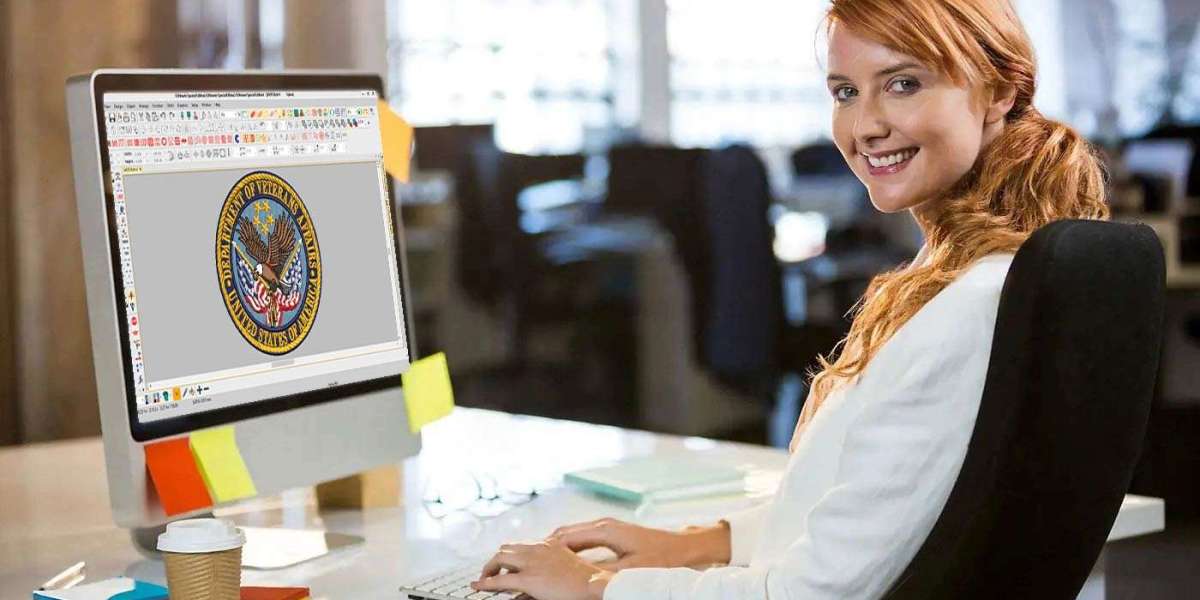
If you are running a Barudan shop, you likely have access to Barudan's own software, or you might be using an industry standard like Wilcom EmbroideryStudio . Wilcom is the heavy hitter here because it gives you total control over stitch types, densities, and pull compensation. If you are on a tighter budget, Embird or Hatch are solid alternatives that can export DSB files .
When you import your cleaned-up logo into the software, you are not just tracing it. You are telling the program where to use a satin stitch for the shiny outline, where to use a fill stitch for the big solid areas, and where a simple run stitch will do for fine details . Pay attention to the stitch direction. If you let the software guess, it might sew the fill in a direction that makes the logo look flat or causes the fabric to pucker. You want the stitches to flow with the shape of the design.
Step Three: Exporting the DSB File
Once you have your stitch paths looking exactly right on the screen, it is time to export. Go to your file menu and look for the Export or Save As option. You will see a long list of formats like DST, PES, EXP, and JEF. Your target is DSB .
A quick word of advice here: do not just overwrite your original working file. Save your editable design first (in whatever native format your software uses, like an EMB or a working file). Then export a copy as a DSB. This way, if the client wants to resize the logo next month, you still have the editable version and do not have to start from scratch.
Step Four: Testing and Loading into the Machine
You have the DSB file. Now what? You cannot just trust that it is perfect. Always, always do a test sew-out on a scrap piece of fabric that matches the actual garment you are going to embroider . This is the only way to catch issues like puckering or thread breaks before you ruin a fifty-dollar jacket.
When you are satisfied with the test, transfer the DSB file to a USB stick. Plug that stick into your Barudan machine's control panel. Most modern Barudan controllers will recognize the DSB file immediately .
Now, remember what I said about colors? This is where you fix that. The machine will load the design and show you a sequence of stops. You have to manually map each stop to a needle on your machine's head. If your logo has a red circle and blue text, you need to tell the machine that stop number one is the red needle and stop number two is the blue needle. This is why keeping a physical or digital note of your color sequence is so important.
Common Pitfalls to Avoid
Even if you follow the steps, a few things can still go wrong. The biggest issue I see is density. If you crank up the stitch density to make the logo look "solid," you are actually just perforating the fabric so much that it will tear. Let the software's default density settings do their job, and only tweak them if you are working with a really thick fabric like canvas or a really thin one like silk.
Another common headache is the underlay. Underlay is the foundation stitches that go down before the visible design. Without a good underlay, your logo will sit on top of the fabric like a sticker instead of blending into it, and the edges will look ragged . Always double-check that your software has generated underlay, especially under satin stitch borders.
Conclusion
Transforming a piece of custom artwork into a DSB machine file is not rocket science, but it is a craft that requires patience and the right tools. You cannot skip the artwork cleanup, you absolutely need proper digitizing software, and you must test before you sew on the final product.
Once you get the hang of this workflow, you will find that DSB files give you incredible precision on Barudan machines. That precision is what separates a hobbyist from a professional shop. Take your time with the digitizing phase, respect the stitch limits of your fabric, and always keep a color sheet handy. Your clients will notice the difference when they see that crisp, clean logo stitched out perfectly every single time.