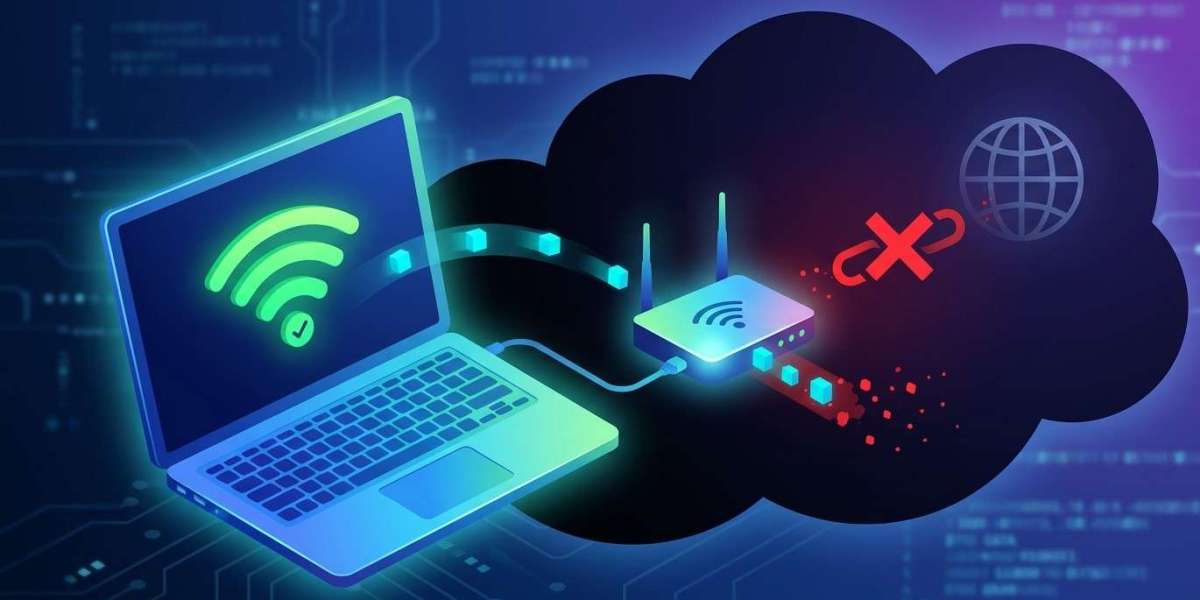

Connecting your laptop to a Wi-Fi network does not always mean you have access to the internet. Sometimes, the wireless connection appears active, but websites refuse to load, applications cannot connect, and online services remain unavailable. This problem can interrupt work, online meetings, studies, and everyday browsing.
Fortunately, several troubleshooting methods can help identify and resolve the issue. Understanding the possible causes can also help you decide when professional computer repair Albany assistance may be necessary.
Table of Contents
Why Is Your Laptop Connected to Wi-Fi but Not the Internet?
Check Whether Your Internet Service Is Working
Restart Your Laptop and Router
Forget and Reconnect to the Wi-Fi Network
Run the Windows Network Troubleshooter
Check IP and DNS Settings
Update Your Network Drivers
When to Seek Professional Help
Frequently Asked Questions
1. Why Is Your Laptop Connected to Wi-Fi but Not the Internet?
This problem can happen when your laptop successfully connects to the router but cannot communicate with the wider internet.
Some common causes include:
Temporary internet service interruptions.
Router or modem configuration problems.
Incorrect IP address or DNS settings.
Outdated or corrupted network drivers.
VPN or firewall conflicts.
Weak or unstable wireless signals.
Network configuration errors.
Identifying whether the problem affects one device or your entire network is an important first step.
2. Check Whether Your Internet Service Is Working
Start by checking the internet connection on another device, such as a smartphone, tablet, or another computer.
If all devices connected to the same Wi-Fi network have no internet access, the issue may be related to your router, modem, or internet service provider.
However, if other devices work normally, the problem is more likely connected to your laptop.
You should also check your internet provider's service status or contact its support team to ask about possible outages.
3. Restart Your Laptop and Router
A simple restart can resolve temporary network errors and refresh your device's connection.
Follow these steps:
Save your work and restart your laptop.
Turn off your router and modem.
Disconnect their power cables.
Wait approximately 30 seconds.
Reconnect the power cables.
Allow the devices to restart fully.
Connect your laptop to Wi-Fi again.
Check whether websites and online applications are working. Avoid using the factory reset button unless you are prepared to configure your router again.
4. Forget and Reconnect to the Wi-Fi Network
Sometimes, saved network information becomes outdated or corrupted. Forgetting the network and reconnecting can help resolve these problems.
On Windows:
Open Settings.
Select Network & Internet.
Choose Wi-Fi.
Open Manage known networks.
Select your wireless network.
Click Forget.
Search for available networks and reconnect using your password.
This process creates a fresh connection and may correct certain authentication or configuration issues.
5. Run the Windows Network Troubleshooter
Windows includes built-in troubleshooting tools that can identify common network problems.
Open Settings and navigate to System, then Troubleshoot, and select Other troubleshooters. Find Network and Internet or the relevant network troubleshooter, depending on your Windows version.
Follow the instructions displayed on the screen. Windows may identify problems involving network configuration, connectivity, or the wireless adapter.
Although the troubleshooter cannot fix every issue, it can provide useful information about the cause.
6. Check IP and DNS Settings
Your laptop needs correct IP and DNS settings to communicate with websites and online services. Incorrect configurations can allow Wi-Fi connectivity while preventing internet access.
On Windows, you can try renewing your IP address and refreshing DNS through Command Prompt.
Open Command Prompt as an administrator and enter these commands separately:
ipconfig /releaseipconfig /renewipconfig /flushdnsRestart your browser and test the connection.
If you use custom network settings, VPN software, or a managed business network, check with the network administrator before changing configurations.
7. Update Your Network Drivers
Outdated or corrupted wireless drivers may prevent your laptop from communicating properly with the router.
To check for driver updates:
Right-click the Windows Start button.
Open Device Manager.
Expand Network adapters.
Find your wireless adapter.
Check for driver updates through Windows Update or the laptop manufacturer's official website.
Install only compatible drivers from trusted sources. If the adapter is damaged or Windows cannot detect it, additional diagnosis may be required.
8. When to Seek Professional Help
If your laptop still connects to Wi-Fi without internet access after trying these steps, the issue may involve damaged network hardware, operating system errors, advanced configuration problems, or security software conflicts.
Professional technicians can inspect the wireless adapter, test network settings, diagnose hardware faults, and identify problems that basic troubleshooting may not resolve.
For reliable Computer Repair Albany NY assistance, you can explore the services available through computerrepairalbany.net. Professional computer repair Albany support can help identify persistent computer and connectivity issues.
Frequently Asked Questions
1. Why does my laptop say connected but no internet?
Your laptop may be connected to the router, but the router may not have internet access. Incorrect DNS settings, IP configuration, or driver problems can also cause this issue.
2. Why does Wi-Fi work on my phone but not my laptop?
The problem may be related to your laptop's network adapter, saved Wi-Fi settings, drivers, or security software.
3. Can a VPN cause internet connection problems?
Yes. Incorrect VPN settings or connection failures can interfere with normal internet access. Temporarily disconnecting the VPN can help identify the cause.
4. Will restarting my router fix the problem?
It often resolves temporary router and network errors, but persistent problems may require additional troubleshooting.
5. When should I get professional computer repair?
Consider professional help when the connection repeatedly fails, your wireless adapter is not working, or standard troubleshooting steps do not restore internet access.
Conclusion and Call to Action
A laptop that connects to Wi-Fi but cannot access the internet may have problems involving the router, network settings, DNS, drivers, or wireless hardware. By checking other devices, restarting network equipment, refreshing saved connections, and updating drivers, you can often identify the cause.
If the issue continues, professional troubleshooting can help restore reliable connectivity. Visit Computer Repair Albany NY at https://computerrepairalbany.net/ to learn more about computer support and repair services.