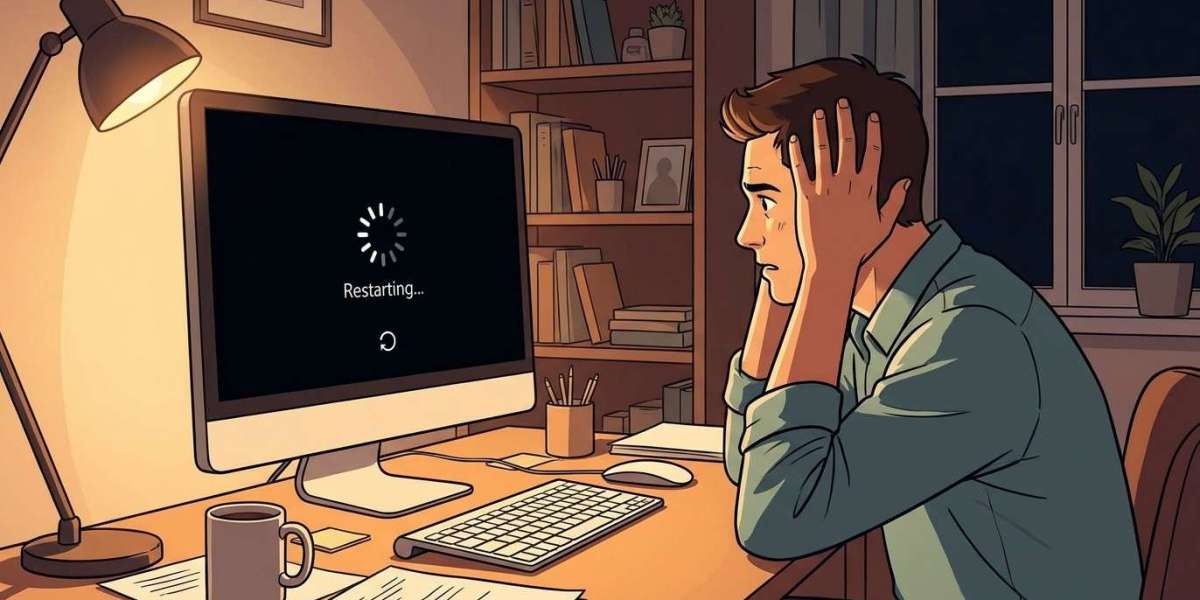

A computer that keeps restarting without warning can interrupt your work, cause you to lose important files, and make everyday tasks frustrating. This problem may be related to overheating, outdated drivers, software errors, faulty hardware, or operating system issues. Identifying the cause is the first step toward finding a reliable solution. Mobile Device Techs, mobiledevicetechs.com, and Mobile Device Techs Douglasville provide useful resources for learning more about device care, troubleshooting, and repair guidance.
Table of Contents
Common Reasons a Computer Keeps Restarting
Troubleshooting Tips to Fix the Problem
When to Seek Professional Computer Repair
Frequently Asked Questions
Conclusion
1. Common Reasons a Computer Keeps Restarting
Unexpected restarts can happen for several reasons. Understanding these common causes can help you narrow down the problem.
Overheating
Computers generate heat while running. If dust blocks the cooling fans or ventilation openings, the system may become too hot. Some computers automatically shut down or restart to protect internal components from heat damage.
Outdated or Faulty Drivers
Drivers help your operating system communicate with hardware such as graphics cards, network adapters, and printers. Outdated or corrupted drivers can cause system instability, crashes, and unexpected restarts.
Operating System Errors
Damaged system files, failed updates, or software conflicts can prevent your operating system from working correctly. These issues may cause repeated restarts, especially during startup or after an update.
Faulty RAM or Other Hardware
Defective memory modules, a failing power supply, or other damaged components can make a computer unstable. Hardware-related problems may cause random restarts even when you are not running demanding programs.
Malware or Unwanted Software
Certain malicious programs can interfere with normal system operations. Suspicious applications or recently installed software may also create conflicts that lead to crashes and restarts.
Power Supply Problems
A loose power connection, damaged power cable, or failing power supply can interrupt the electricity reaching your computer. This may cause sudden shutdowns or repeated restarts.
2. Troubleshooting Tips to Fix the Problem
Before arranging a repair, try these practical steps to identify and resolve the issue.
Check Your Computer's Temperature
Make sure the computer has enough ventilation. Keep air vents clear and place the device on a hard, flat surface. Clean accessible dust carefully, and avoid opening internal components unless you know how to do so safely.
Install Available Updates
Check for operating system updates and install pending updates from official sources. Updated software can resolve known bugs and improve system stability.
Update Device Drivers
Use your computer manufacturer's official website or trusted operating system tools to check for driver updates. Pay particular attention to graphics, chipset, and other essential drivers.
Scan for Malware
Run a full scan using a reputable, updated security program. Remove suspicious software and avoid downloading applications from unfamiliar websites.
Check Recently Installed Programs
If restarting began after installing a new application or update, check whether that change may be responsible. Uninstalling a recently added program can help determine whether it caused a software conflict.
Check Memory and Hardware
Use built-in memory diagnostic tools to check for possible RAM problems. If you suspect a failing power supply, damaged component, or loose internal connection, have a qualified technician inspect the computer.
3. When to Seek Professional Computer Repair
Some restarting problems require more than basic troubleshooting. Consider professional assistance if:
Your computer restarts repeatedly before reaching the desktop.
It shuts down even when running simple applications.
You hear unusual clicking, buzzing, or fan noises.
The device becomes excessively hot.
You see frequent blue-screen errors.
Restarts continue after software updates and malware scans.
If your computer contains important files, back up accessible data as soon as possible. Repeated crashes can increase the risk of data loss, especially if a storage device is failing.
4. Frequently Asked Questions
Why does my computer restart randomly?
Random restarts can result from overheating, faulty drivers, operating system errors, malware, memory problems, or an unstable power supply.
Can overheating cause a computer to restart?
Yes. Many computers automatically shut down or restart when temperatures become too high to protect internal hardware.
Can a Windows update cause repeated restarts?
A failed update or software conflict can sometimes create startup problems. Installing available fixes or using Windows recovery options may help.
How do I know if my RAM is causing restarts?
Memory-related problems may produce crashes, error messages, or unexpected restarts. A built-in memory diagnostic or professional hardware test can help identify faulty RAM.
Should I keep using a computer that restarts frequently?
It is better to investigate the issue rather than ignore it. Back up important files and seek professional help if restarts continue, especially if the computer overheats or makes unusual noises.
5. Conclusion
A computer that keeps restarting may have an overheating issue, outdated drivers, software conflicts, malware, faulty memory, or power supply problems. Checking ventilation, updating software, scanning for malware, and reviewing recently installed programs can help resolve some common causes. If the issue continues, professional diagnosis may prevent further hardware damage or data loss. For more device care information and repair guidance, explore Mobile Device Techs, visit mobiledevicetechs.com, or connect with Mobile Device Techs Douglasville to learn more about keeping your devices working reliably.
Call to Action
Is your computer restarting repeatedly and interrupting your daily work? Do not ignore the warning signs. Try these troubleshooting steps, back up your important files, and seek professional assistance if the problem persists.
Visit https://mobiledevicetechs.com/ to learn more about mobile device care and repair information.